Here are links to the 72 most common WordPress errors and how to fix them. As a WordPress user, you are likely to encounter a wide range of errors, from minor glitches to critical issues that can take down your site.
How to fix the White Screen of Death (WSOD)
This error presents a blank, white screen on your WordPress site, indicating a critical issue that hampers content display. This pesky error can cause panic among WordPress website owners, but fear not!
We will guide you through the steps to fix the WordPress White Screen of Death.
What Causes the WordPress White Screen of Death?
The WordPress White Screen of Death can be caused by a variety of factors, including:
Plugin or theme conflicts: A plugin or theme that’s incompatible with your WordPress installation can cause the WSOD.
Corrupted core files: If your WordPress core files are corrupted, it can cause the WSOD.
Insufficient memory limit: If your WordPress installation doesn’t have enough memory, it can cause the WSOD.
How to Fix the WordPress White Screen of Death
Now that we understand what the WordPress White Screen of Death is and what causes it, let’s delve into the steps to fix it.
Step 1: Enable Debugging Mode
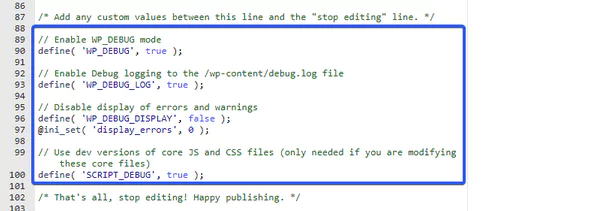
The first step in fixing the WordPress White Screen of Death is to enable debugging mode. This will allow you to see the error message that’s causing the WSOD.
Here’s how:
Edit the wp-config.php file: Locate the wp-config.php file in the root directory of your WordPress installation and edit it.
Add the following code: Add the following code to the file, just before the line that says /* That’s all, stop editing! Happy blogging. */
define( ‘WP_DEBUG’, true );
define( ‘WP_DEBUG_LOG’, true );
define( ‘WP_DEBUG_DISPLAY’, false );
@ini_set( ‘display_errors’, 0 );
Save the file: Save the wp-config.php file and refresh your website. You should now be able to see the error message causing the WSOD.
Step 2: Disable Plugins and Themes
If the error message indicates that a plugin or theme is causing the WSOD, the next step is to disable them. Here’s how:
Deactivate all plugins: Deactivate all of your plugins and see if the WSOD goes away.
Switch to a default theme: Switch to a default WordPress theme, such as Twenty Twenty-One, and see if the WSOD goes away.
Step 3: Increase Memory Limit
If the error message indicates that your WordPress installation doesn’t have enough memory, the next step is to increase the memory limit.
Here’s how:
Edit the wp-config.php file: Open the wp-config.php file and add the following code just before the line that says /* That’s all, stop editing! Happy blogging. */
define(‘WP_MEMORY_LIMIT’, ‘256M’);
Save the file: Save the wp-config.php file and refresh your website. You should now have enough memory to prevent the WSOD.
Step 4: Reinstall WordPress Core Files
If none of the above steps fix the WSOD, the issue may be with your WordPress core files.
Here’s how to reinstall them:
Download a fresh copy of WordPress: Download a fresh copy of WordPress from wordpress.org.
Delete old WordPress files: Delete all files and folders in your WordPress installation except for the wp-config.php file and the wp-content folder.
Upload new WordPress files: Upload the new WordPress files to your WordPress installation.
How to fix WordPress posts returning a 404 error
What is a 404 Error?
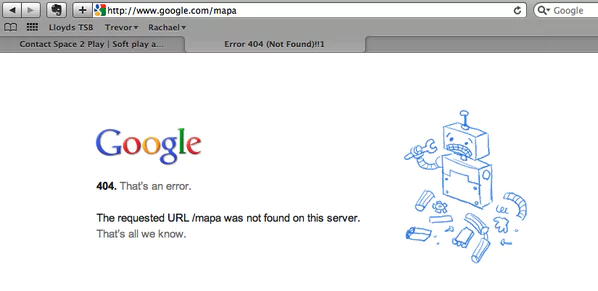
A 404 error occurs when a webpage or post cannot be found on your website.
This can happen when the URL is incorrect or the webpage has been deleted or moved.
It’s important to address 404 errors because they can affect your website’s user experience and search engine rankings.
What Causes WordPress Posts to Return a 404 Error?
There are a few reasons why WordPress posts may return a 404 error, including:
Permalink structure issues: WordPress uses permalinks to create the URLs for your posts. If your permalink structure is incorrect or has been changed, it can cause posts to return a 404 error.
Corrupted .htaccess file: The .htaccess file controls how your website handles URLs. If it becomes corrupted, it can cause posts to return a 404 error.
Plugin or theme conflicts: A plugin or theme that’s incompatible with your WordPress installation can cause posts to return a 404 error.
How to Fix WordPress Posts Returning a 404 Error
Now that we understand what a 404 error is and what causes WordPress posts to return one, let’s dive into how to fix it.
Step 1: Check Permalink Structure
The first step in fixing WordPress posts returning a 404 error is to check your permalink structure. Here’s how:
Go to Settings > Permalinks: In your WordPress dashboard, go to Settings > Permalinks.
Click Save Changes: Scroll down and click the Save Changes button to refresh your permalink structure.
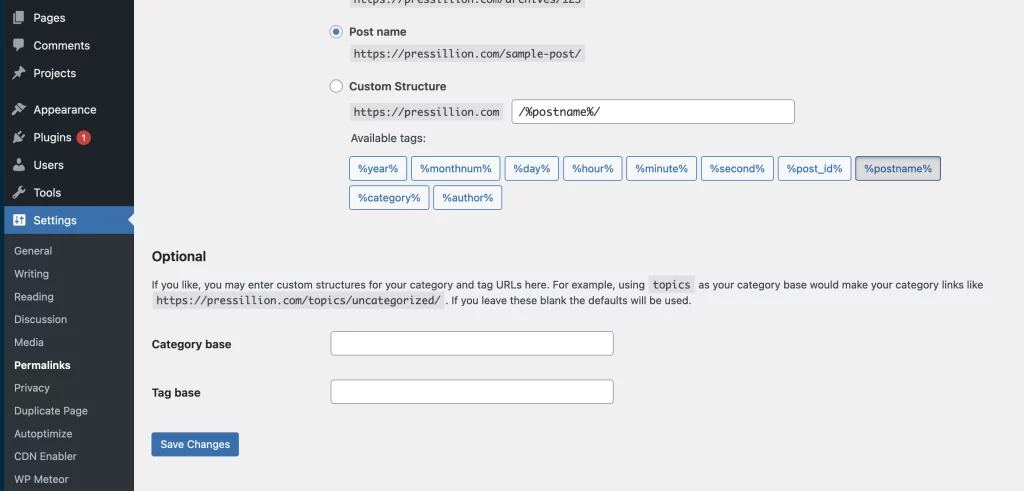
If this doesn’t fix the issue, try changing your permalink structure to something different, saving the changes, and then changing it back to your preferred structure.
Step 2: Regenerate .htaccess File
If your permalink structure is correct and you’re still experiencing 404 errors, the next step is to regenerate your .htaccess file.
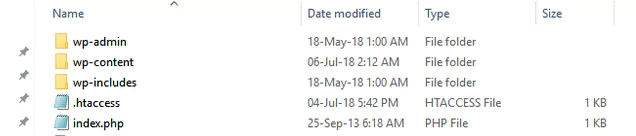
Here’s how:
Connect to your website via FTP: Use an FTP client to connect to your website.
Rename the .htaccess file: Rename your existing .htaccess file to something like .htaccess_old.
Regenerate the .htaccess file: In your WordPress dashboard, go to Settings > Permalinks and click the Save Changes button. This will regenerate a new .htaccess file.
Check for 404 errors: Refresh your website and check to see if posts are still returning a 404 error.
Step 3: Disable Plugins and Themes
If regenerating your .htaccess file doesn’t fix the issue, the next step is to disable your plugins and themes.
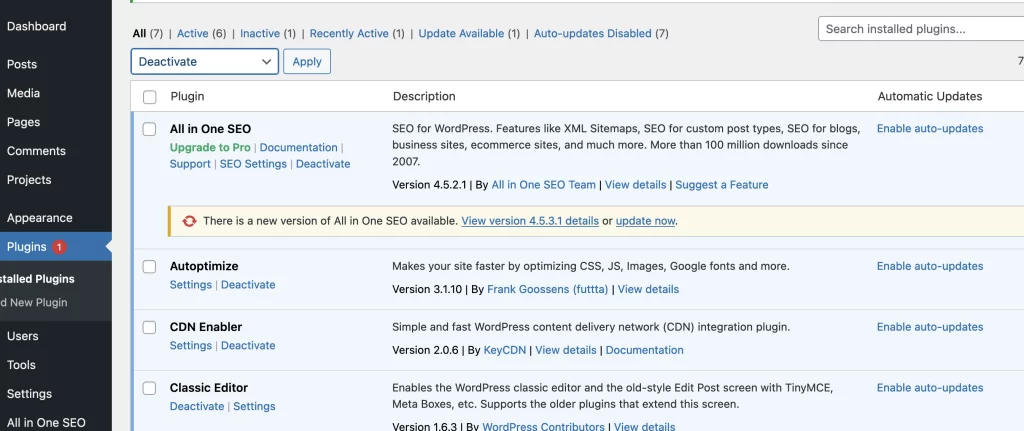
Here’s how:
Deactivate all plugins: Deactivate all of your plugins and see if the 404 error goes away.
Switch to a default theme: Switch to a default WordPress theme, such as Twenty Twenty-One, and see if the 404 error goes away.
If disabling your plugins or themes fixes the issue, you can reactivate them one by one to find the culprit.
How to Fix the SSH “Connection Refused” Error
As a seasoned WordPress user delving into the intricacies of Secure Shell (SSH), encountering a “Connection refused” error might raise concerns.
Fear not, I will show you how to fix the SSH “Connection Refused” error. This common hurdle has straightforward solutions that empower you to resume your command-line endeavors swiftly.
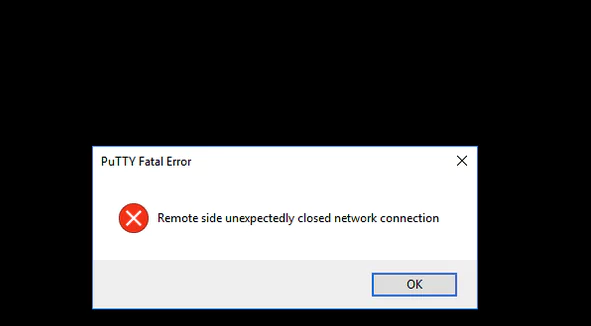
Unlocking the Mysteries of SSH: Troubleshooting “Connection Refused” Errors in WordPress
In this comprehensive tutorial, we’ll explore SSH, and its applications, and unravel the mysteries behind connection issues. Armed with troubleshooting insights, you’ll soon navigate the realms of SSH effortlessly.
Understanding SSH and Its Applications
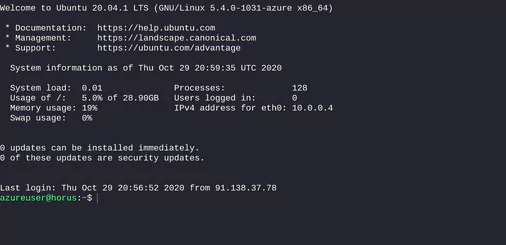
What is SSH and When Should I Use It?
Secure Shell (SSH), also known as Secure Socket Shell, is a protocol designed for secure access to your site’s server over unsecured networks. Unlike File Transfer Protocol (FTP), which is limited to file management, SSH opens up a realm of possibilities for advanced users.
It allows remote access to your server, making it invaluable for scenarios like troubleshooting errors that lock you out of your WordPress site.
SSH serves as the gateway to essential developer tools, including:
- WP-CLI: A WordPress command line for tasks like installations, bulk plugin updates, and media file imports.
- Composer: A PHP package manager facilitating the inclusion of frameworks and dependencies into your site’s code.
- Git: A version control system crucial for tracking code changes, especially in collaborative development environments.
- npm: A JavaScript package manager with a command-line interface and JavaScript software registry.
While SSH unlocks powerful capabilities, it’s important to note that it’s an advanced skill. Non-technical users are advised to seek assistance from developers or hosting providers rather than attempting to troubleshoot SSH issues independently.
Common Culprits: Why Is My SSH Connection Refused?
Encountering a “Connection refused” error signals hurdles in establishing an SSH connection. Let’s dissect five common scenarios causing connectivity errors:
- Your SSH Service Is Down: For SSH to function, the server must run an SSH daemon, a background program listening for connections. Unexpected traffic spikes, resource outages, or potential DDoS attacks can bring down the SSH service. A quick check using the command
sudo service ssh statuscan confirm if the service is down.SSH daemon: Connection refused error,sudo service ssh status. - Incorrect Credentials: Simple yet crucial, entering inaccurate details can lead to connection failures. Verify the hostname, username, password, and port to ensure correctness. The default SSH port is 22, but some providers might alter it for security reasons (
grep Port /etc/ssh/sshd_configto check).SSH credentials: Connection refused,grep Port /etc/ssh/sshd_config. - Closed Port: Ports act as endpoints for connections. If the designated port (usually 22 or a custom SSH port) is closed, a “Connection refused” error occurs. You can inspect open ports using
sudo lsof -i -n -P | grep LISTEN.Port closed: Connection refused error,sudo lsof -i -n -P | grep LISTEN. - SSH Not Installed on Server: Without an SSH daemon on the server, establishing an SSH connection is impossible. Install SSH using
sudo apt install openssh-serverif it’s not already present.SSH installation: Connection refused,sudo apt install openssh-server. - Firewall Blocking SSH: Firewalls may impede SSH connections. Adjust firewall rules to permit SSH connections by modifying destination port settings to ACCEPT.Firewall settings: SSH connection blocked, ACCEPT settings.
Troubleshooting SSH Connectivity Errors: A Step-by-Step Guide
When faced with an SSH connectivity error, employing targeted troubleshooting steps is key. Here’s a step-by-step guide based on the identified causes:
- If SSH Service Is Down:
- Contact your hosting provider to investigate and rectify the SSH service status.
- For local or dedicated servers, attempt restarting the SSH service with
sudo service ssh restart.
- If Incorrect Credentials Were Entered:
- Double-check SSH credentials, including hostname, username, password, and port.
- Consider potential typos or errors in IP addresses.
- If the Port Is Closed:
- Confirm the designated SSH port’s status using
sudo lsof -i -n -P | grep LISTEN. - Ensure the port is open to facilitate SSH connections.
- Confirm the designated SSH port’s status using
- If SSH Isn’t Installed on the Server:
- Install an SSH tool like OpenSSH on the server with
sudo apt install openssh-server.
- Install an SSH tool like OpenSSH on the server with
- If Firewall Is Blocking SSH:
- Disable firewall rules obstructing SSH connections by adjusting destination port settings to ACCEPT.
- 404 Page Not Found
- Connection Timed Out Error
- Sidebar Below Content Error
- Memory Exhausted Error
- Syntax Error
- HTTP 501 Not Implemented Error
- WordPress Stuck in Maintenance Mode
- Destination Folder Already Exists Error
- Pluggable.php File Errors
- HTTP Error When Uploading Images
- Briefly Unavailable for Scheduled Maintenance Error
- Maximum Execution Time Exceeded Error
- Locked Out of WordPress Admin Dashboard
- Error 403 Forbidden Access Denied
- Too Many Redirects Error
- 504 Gateway Timeout error
- Mixed Content Error
- White Text and Missing Buttons in WordPress Visual Editor
- WordPress Login Page Refreshing and Redirecting Issue
- Unable to Create Directory WordPress Error
- Sidebar Widgets Disappearing in WordPress
- Missing Style Sheet Error in WordPress
- WordPress Keeps Logging Out Problem
- Allowed Memory Size Exhausted Error
- Briefly Unavailable for Maintenance Error
- WordPress Posts Returning 404 Error
- Image Upload Issue – “Sorry, This File Type Is Not Permitted for Security Reasons.”
- The Uploaded File Exceeds the Upload_Max_Filesize Directive in php.ini Error
- Add Media Button Not Working
- The Site Is Experiencing Technical Difficulties Error
- 502 Bad Gateway Error
- Fatal Error: Maximum Execution Time Exceeded
- WordPress Memory Exhausted Error – Increase PHP Memory
- Cannot Modify Header Information – Headers Already Sent By Error
- WordPress RSS Feed Errors
- Error Establishing a Database Connection
- WordPress Website Not Updating
- How to Fix WordPress Posts Returning 404 Error
- Admin-ajax.php 404 Error on WordPress Site
- This Site Ahead Contains Harmful Programs Error
- Facebook Incorrect Thumbnail Issue
- Missed Scheduled Posts Error
- Upload Failed To Write to Disk Error
- Are You Sure You Want To Do This Error
- Common Image Issues
- Googlebot Cannot Access CSS and JS files
- Failed to Load Resource Error
- The Link You Followed Has Expired
- Connection Not Private Error
- File and folder Permission Errors
- HTTP Image Upload Error
- Common SSL Issues
- Missing a Temporary File Error
- Password Reset Error
- Another Update in Progress Error
- WordPress Failed to Open Stream Error
- 503 Service Unavailable Error
- How to Fix Maintenance Mode Error
- 500 Internal Server Error
- 429 Too Many Redirects Error
- 413 Request Entity Too Large Error
- Turn Off PHP Errors
- Secure Connection Error
- How to Fix cURL Error 28: Connection Timed Out
- Uploaded File Exceeds The upload_max_filesize Directive Error
- Error 521 with WordPress and Cloudflare
- Sorry, This File Type Is Not Permitted for Security Reasons Error
- Installation Failed: Could Not Create Directory Error
- SSH “Connection Refused” Error
To fix these errors, you can follow the various solutions depending on the type of error. However, it is essential to make a backup of your WordPress site before attempting to fix any errors.
You can either use a plugin to create a backup or manually create one by exporting your site files and database.
In conclusion, WordPress errors can be frustrating, but they are not insurmountable. By following the right steps and solutions, you can resolve the most common errors and keep your site running smoothly.
- White Screen of Death (WSOD): This error presents a blank, white screen on your WordPress site, indicating a critical issue that hampers content display.
- Error Establishing a Database Connection: It occurs when WordPress fails to connect to its database, usually due to incorrect database credentials.
- Internal Server Error: A generic error indicating server issues preventing the website from functioning properly.
- 404 Page Not Found: Signals that the requested web page or resource is unavailable on the server.
- Connection Timed Out Error: Arises when the server takes too long to respond to a request, resulting in a timeout.
- Sidebar Below Content Error: This issue places sidebar content below the main content instead of its intended position.
- Memory Exhausted Error: This indicates WordPress has used all available memory, leading to site crashes.
- Syntax Error: Occurs due to code mistakes, often in PHP, hindering its execution.
- HTTP 501 Not Implemented Error: Denotes the server’s inability to recognize or support the requested action.
- WordPress Stuck in Maintenance Mode: This happens when WordPress fails to exit maintenance mode after an update, making the site inaccessible.
- Destination Folder Already Exists Error: Arises during plugin or theme installation when the destination folder contains a similar item.
- Pluggable.php File Errors: Issues linked to the pluggable.php file, are commonly associated with functions or overrides in WordPress.
- HTTP Error When Uploading Images: Occurs when uploading images, often due to file size or server constraints.
- Briefly Unavailable for Scheduled Maintenance Error: Appears temporarily during WordPress updates.
- Maximum Execution Time Exceeded Error: When PHP scripts surpass the server’s maximum execution time limit.
- Locked Out of WordPress Admin Dashboard: Denied access to the WordPress admin dashboard due to incorrect login credentials or security measures.
- Error 403 Forbidden Access Denied: Lacks permission to access a specific resource due to inadequate user privileges.
- Too Many Redirects Error: An excessive loop of redirections, usually due to misconfigurations in settings or plugins.
- 504 Gateway Timeout Error: This indicates that a server acting as a gateway has not received a timely response from another server.
- Mixed Content Error: Arises when a site served over HTTPS contains HTTP content, impacting security and encryption.
- White Text and Missing Buttons in WordPress Visual Editor: Visual editor displaying white text or missing buttons due to a plugin or theme conflict.
- WordPress Login Page Refreshing and Redirecting Issue: The login page continuously refreshes or redirects, usually due to caching or cookie issues.
- Unable to Create Directory WordPress Error: This occurs when WordPress fails to create a directory, often due to incorrect file permissions.
- Sidebar Widgets Disappearing in WordPress: Widgets disappear from the WordPress sidebar due to theme or plugin conflicts.
- Missing Style Sheet Error in WordPress: This appears when the WordPress theme stylesheet is missing or not accessible.
- WordPress Keeps Logging Out Problem: Repeatedly logs users out of WordPress due to expired cookies or cache conflicts.
- Allowed Memory Size Exhausted Error: WordPress exhausts the PHP memory limit set, resulting in failures and WSOD.
- Briefly Unavailable for Maintenance Error: This shows up briefly during WordPress updates or maintenance.
- WordPress Posts Returning 404 Error: Post pages not found, usually due to permalink issues or .htaccess misconfigurations.
- Image Upload Issue – “Sorry, This File Type Is Not Permitted for Security Reasons.”: Disallows image upload due to file type restrictions for security purposes.
- The Uploaded File Exceeds the Upload_Max_Filesize Directive in php.ini Error: This error arises when attempting to upload files larger than the server’s configured limit, as set in the PHP configuration file (php.ini).
- Add Media Button Not Working: When the ‘Add Media’ button within WordPress fails to function properly, hindering the insertion of images or media into posts or pages.
- The Site Is Experiencing Technical Difficulties Error: A general error message suggesting technical issues affecting the site’s normal functionality.
- 502 Bad Gateway Error: This error indicates an invalid response received by a server acting as a gateway or proxy.
- Fatal Error: Maximum Execution Time Exceeded: When PHP scripts surpass the maximum execution time allowed, leading to a fatal error.
- WordPress Memory Exhausted Error – Increase PHP Memory: Signals that WordPress has consumed all available PHP memory and requires an increase in memory allocation.
- Cannot Modify Header Information – Headers Already Sent By Error: This error results from PHP sending header information before loading a website, preventing header modifications.
- WordPress RSS Feed Errors: Issues impacting RSS feeds, disrupting content syndication and distribution.
- Error Establishing a Database Connection: Indicates a failure in establishing a connection between WordPress and its database, often due to incorrect credentials or database server issues.
- WordPress Website Not Updating: When changes made to a WordPress site fail to reflect or update properly, hindering site modifications or content additions.
- How to Fix WordPress Posts Returning 404 Error: Steps to resolve the issue where WordPress post pages return a 404 error, making posts inaccessible.
- Admin-ajax.php 404 Error on WordPress Site: Occurs when the admin-ajax.php file, crucial for handling AJAX requests, cannot be found, causing functionality issues.
- This Site Ahead Contains Harmful Programs Error: A warning indicating potential security threats or harmful content detected on a website.
- Facebook Incorrect Thumbnail Issue: Errors related to incorrect or missing thumbnails when sharing a WordPress post on Facebook.
- Missed Scheduled Posts Error: This occurs when WordPress fails to publish posts according to their scheduled timing.
- Upload Failed To Write to Disk Error: An error signifying the inability to write uploaded files to the server’s disk, often due to disk space issues or permissions.
- Are You Sure You Want To Do This Error: A generic error message, often vague, appears during various WordPress actions or operations.
- Common Image Issues: Covers a range of image-related issues in WordPress, such as failed uploads, incorrect display, or size limitations.
- Googlebot Cannot Access CSS and JS files: Indicates Googlebot’s inability to access essential CSS and JavaScript files, affecting SEO indexing.
- Failed to Load Resource Error: This appears when a browser fails to load specific resources like images, scripts, or stylesheets on a web page.
- The Link You Followed Has Expired: A message indicating that the link accessed or a session has expired, often encountered after submitting a form or navigating to an expired URL.
- Connection Not Private Error: Alerts users about an insecure or unencrypted connection, usually due to expired SSL certificates or improper configurations.
- File and Folder Permission Errors: Issues arise from incorrect permissions assigned to files and folders in WordPress, often causing access denial or functionality problems.
- HTTP Image Upload Error: Errors encountered while attempting to upload images via HTTP protocol, leading to upload failures.
- Common SSL Issues: Encompasses various SSL-related problems, including certificate errors, insecure connections, or mixed content warnings.
- Missing a Temporary File Error: This occurs when WordPress fails to locate or create a temporary file necessary for proper operations.
- Password Reset Error: Difficulties experienced during the process of resetting passwords, commonly due to expired or invalid reset links.
- Another Update in Progress Error: An error message indicating that another update process is ongoing, preventing further updates at that moment.
- WordPress Failed to Open Stream Error: This occurs when WordPress encounters issues opening or loading a file, often due to permission or path problems.
- 503 Service Unavailable Error: A server-side error message indicating temporary unavailability of services or resources.
- How to Fix Maintenance Mode Error: This occurs when a WordPress site is stuck in maintenance mode, usually during updates. Resolving this involves removing the .maintenance file or fixing interrupted updates manually.
- 500 Internal Server Error: A generic server-side error indicating various underlying issues, commonly caused by faulty plugins, themes, or server misconfigurations.
- 429 Too Many Redirects Error: This appears when a browser or server is stuck in an infinite loop of redirection, usually due to misconfigured settings or conflicting plugins.
- 413 Request Entity Too Large Error: Occurs when attempting to upload files larger than the server’s permitted size, often encountered with large file uploads.
- Turn Off PHP Errors: This involves disabling PHP error reporting in WordPress, ensuring errors aren’t displayed publicly for security reasons.
- Secure Connection Error: Indicates issues with establishing a secure connection (HTTPS), commonly due to misconfigured SSL certificates or insecure content.
- How to Fix cURL Error 28: Connection Timed Out: A cURL error indicating that the connection timed out while attempting to access external resources, is usually resolved by checking server configurations or adjusting timeout settings.
- Uploaded File Exceeds The upload_max_filesize Directive Error: Resolve WordPress upload issues by increasing upload_max_filesize. Edit php.ini or .htaccess, ensuring it surpasses your file size. Plugins like “Increase Max Upload File Size” simplify this.
- Error 521 with WordPress and Cloudflare: Tackle WordPress 521 error caused by Cloudflare server issues. Verify server status, tweak SSL settings, or disable Cloudflare temporarily to diagnose and resolve the problem.
- Sorry, This File Type Is Not Permitted for Security Reasons Error: Overcome WordPress file type restrictions. Edit wp-config.php or use plugins like “WP Extra File Types” to extend allowed file types, ensuring seamless uploads.
- Installation Failed: Could Not Create Directory Error: Fix WordPress installation errors by checking directory permissions. Connect via FTP, verify wp-content, wp-includes, and wp-admin permissions, ensuring they’re set to 755.
- SSH “Connection Refused” Error: Troubleshoot SSH connection issues with diligence. Confirm SSH daemon status, check credentials, inspect open ports, ensure SSH installation, and adjust firewall settings to allow SSH connections.